Best Streaming Software 2026: OBS vs Streamlabs vs StreamElements
A practical streaming software comparison for Twitch, YouTube, and Kick creators who need stable scenes, clean audio, alerts, overlays, and sane encoder settings.
Affiliate disclosure: As an Amazon Associate, CinderSpire Studio may earn from qualifying purchases through the product links below. Rankings are based on published specifications, official documentation, and cited third-party measurements, not paid placement or fake user reviews.
Quick Verdict
| Software | Best For | Strength | Weakness |
|---|---|---|---|
| OBS Studio | Most streamers, serious setup | Open-source, efficient, precise encoder control | More manual setup for alerts and overlays |
| Streamlabs Desktop | Beginners who want guided setup | Integrated alerts, themes, widgets, multistream options | More account and ecosystem dependence |
| StreamElements / SE.Live | OBS users who want cloud overlays | Cloud overlay manager, chatbot, alerts, loyalty | Plugin and browser-source workflow still needs care |
| Twitch Studio | Historical reference only | Was beginner-friendly | Twitch ended support after May 30, 2024 |
Amazon Gear Picks
The Short Answer
OBS Studio is the default recommendation in 2026. It is free, open-source, widely supported, and gives you the most precise control over video, audio, encoders, scenes, sources, filters, and plugins. Streamlabs Desktop is still attractive for creators who want a guided path with built-in alerts and themes. StreamElements is best understood as a cloud overlay and automation layer that pairs well with OBS rather than a pure OBS replacement.
Twitch Studio should not be a new-install recommendation. Twitch's own 2019 Twitch Studio blog post now carries the important update that support was discontinued after May 30, 2024. That matters for security, compatibility, and future platform changes. If you still have an old Twitch Studio workflow, migrate the scenes into OBS, Streamlabs, or a StreamElements-backed OBS setup.
The most stable streamer stack for gaming is OBS Studio plus one alert provider, one chat bot, and one audio routing strategy. Problems appear when a creator adds three alert systems, browser sources from old scenes, duplicate audio captures, and animated overlays that all play the same event. Simplicity improves stream quality more than another widget.
Encoder Choice: Hardware Encoder vs CPU Encoding
| Encoder Path | Uses | Best Hardware | When To Choose |
|---|---|---|---|
| NVENC / AMF / Quick Sync / VideoToolbox | Dedicated GPU or media encoder block | Modern NVIDIA, AMD, Intel, Apple chips | Gaming and streaming on one PC |
| x264 CPU encoding | Main CPU cores | High-core-count CPU with spare headroom | Two-PC setups or CPU-rich non-gaming streams |
| AV1 hardware | Newer GPU encoder blocks | RTX 40/50 class, Intel Arc, newer AMD | Platforms and accounts that support AV1 ingest |
| H.264 CBR | Most compatible live streaming format | Any supported encoder | Twitch and broad viewer compatibility |
OBS explicitly recommends hardware encoders for performance because they take encoding work off the CPU and move it to a specialized component. That is especially important for a single-PC streamer. Your game, browser docks, Discord, VTube software, capture card, and overlays already compete for CPU time. Letting the GPU encoder handle video usually creates fewer frame-time problems than asking x264 to fight a game engine.
CPU encoding still has a place. If you run a two-PC setup, use a capture card, and dedicate the second machine to production, x264 can produce excellent quality. If you mostly stream art, tabletop maps, or coding with low motion, CPU encoding may also be manageable. For high-motion shooters on one PC, hardware encoding is the safer default.
Scenes, Sources, And Audio Routing
Every streaming program uses the same mental model: a scene is a layout, and a source is an element inside that layout. A clean beginner setup needs five scenes: Starting Soon, Gameplay, Just Chatting, BRB, and Ending. Sources should be named plainly: Game Capture, Microphone, Webcam, Alert Overlay, Chat Overlay, Music, and Capture Card. When something breaks five minutes before going live, descriptive names save the stream.
Use Game Capture for PC games when it works, Window Capture for specific applications, Display Capture as a fallback, and Video Capture Device for webcams and capture cards. Keep alerts in one browser source and test them before the stream. For audio, avoid capturing the same desktop audio twice. If your microphone appears in OBS and also inside a camera source, mute one path or viewers will hear comb filtering and echo.
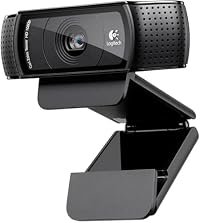
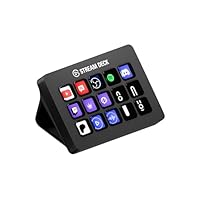
Stream Deck-style controllers are not mandatory, but they solve a real production problem: switching scenes without alt-tabbing out of a game. The same is true for lighting. A modest webcam with good light looks better than an expensive camera in a dark room. Buy audio and lighting before chasing a premium camera body.
OBS vs Streamlabs vs StreamElements
OBS wins for control and long-term reliability. Plugins, profiles, portable scene collections, and wide documentation make it the best base for creators who expect to improve over time. It also avoids locking your entire production workflow into one commercial account. The tradeoff is initial setup. You need to add alerts, themes, chat docks, and overlays yourself.
Streamlabs Desktop wins for guided onboarding. Its official support pages emphasize multistreaming, alert box setup, premium overlays, and creator monetization tools. That is convenient for a new streamer who would otherwise spend three evenings making browser sources. The tradeoff is that convenience can become clutter if you enable every widget.
StreamElements wins for cloud overlays and bot integration. The official Quick Start Guide describes Overlay Manager, tipping, alerts, loyalty, chatbot, and Super Themes as integrated parts of the StreamElements system. Cloud overlays are excellent when you stream from multiple machines or want to edit overlays outside OBS. The tradeoff is that browser-source health becomes critical: one broken overlay URL can hide a key part of the show.
Recommended 2026 Setup Path
A stable workflow beats a complex workflow. Viewers forgive a simple overlay. They do not forgive constant buffering, doubled audio, unreadable chat, or an alert that covers the crosshair. The best streaming software is the one you can operate calmly while playing the game and talking to chat.
- Start with OBS Studio: create five scenes, one profile per platform, and one scene collection per show format.
- Add one alert provider: StreamElements or Streamlabs, not both at the same time.
- Use hardware encoding: NVENC, AMF, Quick Sync, or VideoToolbox unless you have a strong reason to use x264.
- Run a 20-minute private test: check dropped frames, audio sync, alert volume, webcam exposure, and scene switching before the first public stream.
How To Use This Guide Without Overbuying
Use the tables as a decision filter, not as a command to buy the most expensive item. A good gaming purchase starts with the bottleneck you can prove: input latency, frame rate, stream stability, voice clarity, table workflow, display motion, or laptop thermals. Once the bottleneck is clear, compare the specification that actually affects it. For keyboards that might be actuation behavior and layout. For a PC it is usually the GPU and monitor target. For software it is reliability, encoder support, and how quickly a creator can recover when something breaks five minutes before going live.
Prices and Amazon listings move faster than published specifications. Treat the affiliate cards as live availability shortcuts and the citations as the stable evidence layer. If a listing changes configuration, color, RAM amount, switch type, display panel, or included accessory, follow the specification table instead of the product title. This is especially important for gaming laptops, prebuilt bundles, monitors, and peripherals with regional variants. Two products can share the same retail name while using different screens, sensors, switches, power limits, or firmware options.
The practical buying process is: define the use case, check the cited manufacturer or platform documentation, compare at least two alternatives, read measured testing where available, then buy only if the return policy gives you enough time to test the product in your own setup. For physical gear, test comfort, noise, heat, cable routing, and software behavior immediately. For software and online tools, run a private rehearsal with the exact scenes, bots, maps, or rules you expect to use. The best choice is the one that keeps working after the initial setup excitement fades.
Sources And Methodology
We prioritized official manufacturer specifications, official software documentation, and specialist test labs where available. Pricing, availability, and Amazon listings can change quickly, so use the product links as a live availability check and the specification tables as the stable decision layer.
- OBS Studio Overview
- OBS Hardware Encoding
- Streamlabs Multistream Guide
- StreamElements Quick Start Guide
- StreamElements Overlays Docs
- Twitch Studio Discontinuation Notice
Frequently Asked Questions
Is OBS better than Streamlabs?
OBS is better for control, efficiency, and long-term portability. Streamlabs is better for guided beginner setup and integrated widgets. A serious streamer can use either, but OBS plus one alert provider is the cleaner long-term foundation.
Should I use StreamElements with OBS?
Yes, if you want cloud overlays, alerts, loyalty tools, and a chatbot without moving away from OBS. Keep the setup clean: one main overlay browser source, one alert source, and careful audio testing so alerts do not duplicate.
Is Twitch Studio still recommended?
No. Twitch discontinued support after May 30, 2024. Existing installs may still launch, but new streamers should use OBS Studio, Streamlabs Desktop, or an OBS workflow with StreamElements overlays.
What encoder should I use for Twitch?
Most one-PC gaming streamers should use a hardware encoder such as NVIDIA NVENC, AMD AMF, Intel Quick Sync, or Apple VideoToolbox. Use x264 only if your CPU has enough spare headroom or you have a dedicated streaming PC.
How many OBS scenes do I need?
Five scenes cover most streamers: Starting Soon, Gameplay, Just Chatting, BRB, and Ending. Add specialized scenes only after the base workflow is stable. Too many scenes make troubleshooting harder.
Do alerts slow down a stream?
They can if they are heavy browser sources with large animations, sound files, and multiple duplicate widgets. Use one alert provider, compress media assets, and test alerts during a recording before using them live.
Can I stream without a capture card?
Yes for PC gaming. A capture card is mainly needed for console streaming, dual-PC setups, cameras that output clean HDMI, or dedicated production workflows. Many beginners should buy a better microphone before buying a capture card.
What should I buy first for better stream quality?
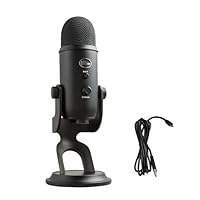
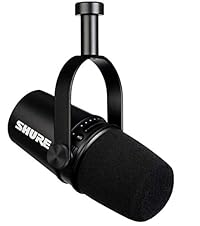
Buy audio and lighting first. A clear microphone and controlled face lighting improve perceived quality more than a premium webcam in a dark room. After that, add a Stream Deck if scene switching interrupts gameplay.
Related CinderSpire Tools And Guides
These internal tools help turn the buying advice into real play, streaming, or tabletop prep workflows.