How To Stream On Twitch: Complete 2026 Guide
A start-to-finish Twitch setup guide for new gaming streamers, covering the actual workflow from account security through OBS, alerts, encoders, and monetization milestones.
Affiliate disclosure: As an Amazon Associate, CinderSpire Studio may earn from qualifying purchases through the product links below. Rankings are based on published specifications, official documentation, and cited third-party measurements, not paid placement or fake user reviews.
Quick Verdict
| Step | Recommended Choice | Why | Common Mistake |
|---|---|---|---|
| Account | Create Twitch account and enable 2FA | Security and channel ownership come first | Going live before profile and moderation settings are ready |
| Software | OBS Studio with Twitch account connection | Stable, free, precise control | Using unsupported Twitch Studio in 2026 |
| Scenes | Starting, Gameplay, Just Chatting, BRB, Ending | Covers most stream formats | One overloaded scene with every source |
| Monetization | Affiliate first, Partner later | Twitch says Partners level up from Affiliate and are selected | Expecting revenue before consistent audience |
Amazon Gear Picks
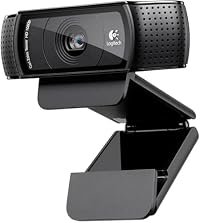
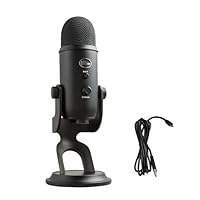
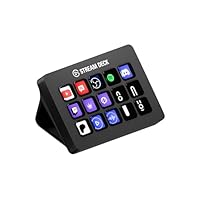
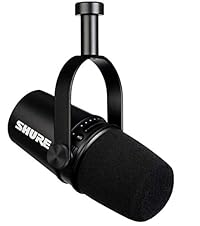
1. Set Up The Twitch Account Correctly
Create the account at Twitch, choose a name you can say aloud, enable two-factor authentication, and fill in the channel basics before installing software. A profile photo, short bio, panels, schedule, and category plan do not make you famous, but they prevent the channel from looking abandoned when the first viewer clicks in.
Open Creator Dashboard and learn where Stream Manager, Analytics, Achievements, Moderation, and Channel settings live. Twitch Creator Camp organizes beginner learning around Going Live, Establish Your Brand, Growing Your Community, Content Categories, Monetization, and Copyright. That structure is useful: streaming is not only a software problem. It is also a scheduling, moderation, branding, and rights-management problem.
Set basic moderation before going live. Add blocked terms, appoint a trusted moderator if possible, and understand how to timeout, ban, and clear chat. If you are building a community server around the stream, read the Discord bots guide before handing broad permissions to automation.
2. Install OBS And Connect Twitch
Install OBS Studio, run the auto-configuration wizard, then connect your Twitch account or use a stream key from Twitch settings. Account connection is easier because it can expose Twitch docks such as chat and stream information inside OBS. A stream key works too, but treat it like a password. If someone else has your stream key, they can broadcast to your channel.
Create a separate OBS profile for Twitch if you also stream to YouTube, Kick, or record locally. Profiles store output settings, while scene collections store the visual layout. That separation prevents a YouTube bitrate experiment from silently breaking your Twitch stream.
3. Build The Core Scenes
| Scene | Sources | Purpose |
|---|---|---|
| Starting Soon | Background, music, chat, countdown, alert source | Gives viewers time to arrive while you check audio. |
| Gameplay | Game Capture, microphone, webcam, alerts, optional chat | Primary gaming layout. |
| Just Chatting | Webcam large, chat, browser/window capture, alerts | Talking segments, post-game review, tabletop planning. |
| BRB | Static card or loop, muted mic if needed, music | Short breaks without ending stream. |
| Ending | Credits, next stream date, socials | Clean end instead of abrupt disconnect. |
Keep sources modular. Put alerts in their own browser source. Put webcam filters on the webcam source, not on a nested group you will forget later. Use a Stream Deck or hotkeys for scene changes if you play full-screen games. The goal is to switch scenes without alt-tabbing and losing focus mid-match.
For audio, run a local recording test. Listen with headphones for echo, doubled desktop audio, harsh microphone peaks, and alerts that are too loud. Viewers will tolerate a simple overlay longer than painful audio.
4. Bitrate And Encoder Settings
Twitch's help portal can be difficult to scrape, but the official broadcasting guidelines URL remains the canonical place to verify current platform settings. Use conservative settings unless your account has enhanced encoding options. A common H.264 Twitch baseline is CBR, 2-second keyframe interval, 1080p60 around 6000 Kbps when upload speed and channel transcodes allow, and lower settings such as 720p60 when your connection or viewer base needs accessibility.
OBS recommends hardware encoding when available because it uses a dedicated encoder instead of loading the CPU. NVIDIA NVENC, AMD AMF, Intel Quick Sync, and Apple VideoToolbox are the practical one-PC choices. Use x264 only if your CPU has spare headroom or you are running a second streaming PC. Watch OBS stats during a test: dropped frames point to network issues, skipped frames point to encoding/rendering load, and high game frame times point to the game or GPU being overloaded.
5. Alerts, Overlays, And Monetization
Streamlabs and StreamElements both provide alert and overlay workflows. Streamlabs emphasizes quick setup, alerts, tip pages, and multistream options. StreamElements emphasizes cloud overlays, Overlay Manager, chatbot, tipping, alerts, loyalty, and Super Themes. Pick one provider at first. Duplicate alert boxes are one of the most common beginner mistakes.
Monetization starts with consistency, not a donate button. Twitch's Partner page describes Partners as creators ready to level up from Affiliate, and notes that Partners can earn from subscriptions, Bits, and ads, with features such as guaranteed transcodes and broadcast delay. Affiliate is the earlier milestone, tracked through Path to Affiliate in the Creator Dashboard. Because requirements and program rules can change, verify the official Twitch Affiliate page inside the dashboard before planning revenue around it.
Do not stream copyrighted music you do not have rights to use. Twitch Creator Camp has copyright training for a reason. Muted VODs, takedowns, and strikes are avoidable if you use licensed music, platform-safe tracks, or no music at all.
How To Use This Guide Without Overbuying
Use the tables as a decision filter, not as a command to buy the most expensive item. A good gaming purchase starts with the bottleneck you can prove: input latency, frame rate, stream stability, voice clarity, table workflow, display motion, or laptop thermals. Once the bottleneck is clear, compare the specification that actually affects it. For keyboards that might be actuation behavior and layout. For a PC it is usually the GPU and monitor target. For software it is reliability, encoder support, and how quickly a creator can recover when something breaks five minutes before going live.
Prices and Amazon listings move faster than published specifications. Treat the affiliate cards as live availability shortcuts and the citations as the stable evidence layer. If a listing changes configuration, color, RAM amount, switch type, display panel, or included accessory, follow the specification table instead of the product title. This is especially important for gaming laptops, prebuilt bundles, monitors, and peripherals with regional variants. Two products can share the same retail name while using different screens, sensors, switches, power limits, or firmware options.
The practical buying process is: define the use case, check the cited manufacturer or platform documentation, compare at least two alternatives, read measured testing where available, then buy only if the return policy gives you enough time to test the product in your own setup. For physical gear, test comfort, noise, heat, cable routing, and software behavior immediately. For software and online tools, run a private rehearsal with the exact scenes, bots, maps, or rules you expect to use. The best choice is the one that keeps working after the initial setup excitement fades.
Sources And Methodology
We prioritized official manufacturer specifications, official software documentation, and specialist test labs where available. Pricing, availability, and Amazon listings can change quickly, so use the product links as a live availability check and the specification tables as the stable decision layer.
- Twitch Creator Camp
- Twitch Partner Program
- Twitch Broadcasting Guidelines
- OBS Studio Overview
- OBS Hardware Encoding
- Streamlabs Twitch Streaming Guide
- StreamElements Overlays
Frequently Asked Questions
What do I need to start streaming on Twitch?
You need a Twitch account, stable upload bandwidth, streaming software such as OBS, a microphone, and a game or content plan. A webcam is optional, but clear audio is not. Set moderation and account security before the first public stream.
Should I use OBS or Streamlabs for Twitch?
Use OBS if you want control, efficiency, and a long-term production foundation. Use Streamlabs if you want guided setup and integrated alerts. Both can work; the key is testing audio, bitrate, and scenes before going live.
What bitrate should I use on Twitch?
Verify the current Twitch broadcasting guidelines, then choose a stable setting your upload can support. Many H.264 1080p60 setups use around 6000 Kbps with CBR and a 2-second keyframe interval, while 720p60 is safer for weaker connections.
Do I need a webcam?
No, but it helps many personality-driven streams. If budget is tight, buy a better microphone and lighting first. A clear voice and visible gameplay are more important than an expensive camera in poor light.
What is the difference between Affiliate and Partner?
Affiliate is the earlier monetization milestone tracked through Twitch achievements. Partner is a selected program for larger, consistent creators. Twitch's Partner page describes Partners as creators ready to level up from Affiliate and lists additional monetization and channel features.
Can I stream console gameplay?
Yes. Some consoles have built-in Twitch broadcasting, and a capture card gives more control through OBS. A capture card is especially useful if you want overlays, alerts, webcam scenes, or higher production quality.
How do I add alerts?
Use one alert provider such as Streamlabs or StreamElements. Create the alert box or overlay, copy the browser-source URL into OBS, test follower/sub/donation events, and balance alert audio against your microphone and game audio.
Why is my stream lagging?
Network dropped frames, encoder overload, and game performance issues look similar to viewers. Check OBS stats. Lower bitrate for network drops, use hardware encoding for encoder overload, and cap game FPS or reduce settings if the GPU is overloaded.
Related CinderSpire Tools And Guides
These internal tools help turn the buying advice into real play, streaming, or tabletop prep workflows.